How to Use Alight Motion Effects [For Beginners]
Alight Motion is your ultimate platform to create and edit videos stunningly from the comfort of your smartphone. With its professional and advanced features, this powerful app helps you create amazing animations, videos, motion graphics, etc. One of the most loved and used features of the app is its trendy filters. The huge library of effects in Alight Motion opens the door to a world of creative possibilities. If you want to add more life to your animations using these trendy and handy effects then this is for you. This guide will help you to gain a clear idea about using Alight Motion effects.
![How to Use Alight Motion Effects [For Beginners]_ (1)](https://alightmotion.multimodapk.com/wp-content/uploads/2024/11/How-to-Use-Alight-Motion-Effects-For-Beginners_-1-1024x576.webp)
Alight Motion Effects
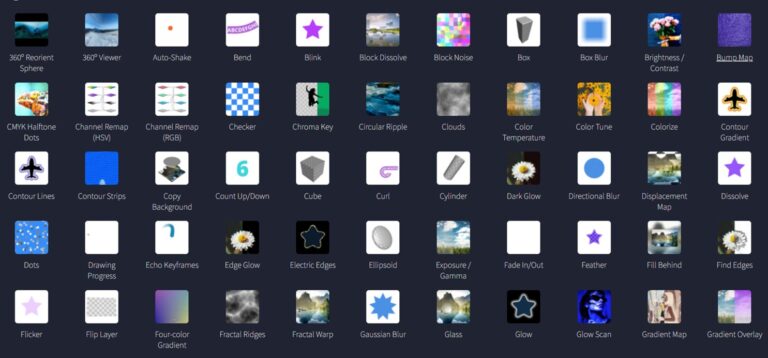
Alight Motion included hundreds of different effects ordered under some categories. Some of these categories to find are mentioned below.
Color and light effects:
By using these effects you can enhance the visual appeal of your video. Here you can find different effects under this category like brightness/contrast, color balance, color temperature, color tune, gradient overlay, hot color, etc. For example, if you select the brightness/contrast effect then you can adjust the brightness and contrast of the video. Likewise, every effect has different properties that make your video creative and attractive.
Blur Effects
Blur effects help create a stylish and dreamy look for your videos. Options include Gaussian Blur, Inner Blur, Sharpen, Lens Blur, Motion Blur, and more.
3D Effects
These effects add depth and realistic 3D illusions to your videos. Popular options include Box, Cube, Cylinder, Heart, Flip Layer, and similar 3D elements.
Matte / Mask / Key
Advanced masking and keying tools allow you to isolate areas or colors. This category includes Chroma Key, Luma Key, Wipe, Vignette, and other powerful effects.
Move/Transform:
Make your video or video elements move along with these effects. Auto shake, move along the path, offset, spin, swing, and oscillate are some of the effects you can find under this effect category.
In addition to the above categories, you can also find categories mentioned here.
- Procedural
- Text
- Drawing and Edge
- Distortion/Warp
- Repeat
- Opacity/Visibility
- Other
When you select the desired effect, you can see the description of the effect and what you can do with it. Also, there is a standard version of the effect which is free to use and for some effects, there are some effects presets to use. But these presets are only available under subscriptions. Also, there is an icon named ‘Guide’ that simply directs you to the official Alight motion app guide mentioning the way of using each effect and if you want to know more about these effects.
How to use Alight Motion Effects
This simple guide lets you use different effects to make your video more captivating.
Import the video
- Open the app Alight Motion.
- In the middle of the interface, you can see a ‘+’ mark. Tap on that.
- After selecting the desired aspect ratio, resolution, frame rate and background create the project.
- Then import the video clip to the editing timeline by tapping on the ‘+’ icon at the right bottom of the interface.
- Here you can add shapes, media, objects, audio, vector drawing, text, etc to the timeline.
- You can add several layers too.
Add effects
- Select the layer to which you want to add effects.
- Then you can see different editing options in the pop-up.
- Locate the icon for ‘Effects’ and click on that.
- Then you can see the option ‘Add Effect’. Tap on that.
- Here you can see the list of different categories. Select the category you want.
- Open it and choose the best-fitting filter for your video.
- You can use multiple effects as well.
Customize your effect
- After you choose your effects, you can see the list of effects you used under the editing timeline.
- By tapping on a specific effect, you can customize some of its features.
- Customization features available will be varied from effect to effect.
- Customize the available features to make the effects more personalized.
- If you want to delete you can do so simply by tapping on the delete icon at the customization panel.
- Most of the effects included here allow keyframe animation controls. Hence, this lets you create smooth and active transitions over the time.
- Use all these features to make your video more creative.
Tips to Use Alight Motion Effects
Plan Your Editing Journey
Planning is the key to success. Outline each step of your editing process and sketch the effects beforehand to maintain a smooth and effective video flow.
Start with Simple Edits
Begin with basic edits and simple effects before moving on to advanced techniques. This helps you build confidence and skills over time.
Combine Different Effects
Mixing multiple effects can add professionalism and creativity to your video. Experiment with layering and effect combinations to enhance visual appeal.
Add and Organize Layers
Using multiple layers adds depth and richness to your video. Keep layers well-ordered and grouped to achieve a clean and polished result.
Use Keyframe Animation
Most Alight Motion effects support keyframe animation. Use keyframes wisely to ensure smooth transitions and controlled motion throughout the video.
Apply Effects Subtly
Overusing effects can make videos look cluttered. Apply effects subtly to preserve clarity and maintain a visually pleasing experience.
Conclusion
The vast library of effects in Alight Motion surely leads you to create professional and visually appealing videos. It includes hundreds of different effects to use under different categories like blur, color, light, 3D, repeat, move/transform, and many more. Most of these effects offer specific customization options to add a touch of professionalism to your videos. Make sure to use these effects subtly, and experiment with different effects to find the best one. These features will finally guide you to create an amazing video to share with the world. So try these nice and cool features of the Alight Motion now and make your editing drive engaging and a simple one.