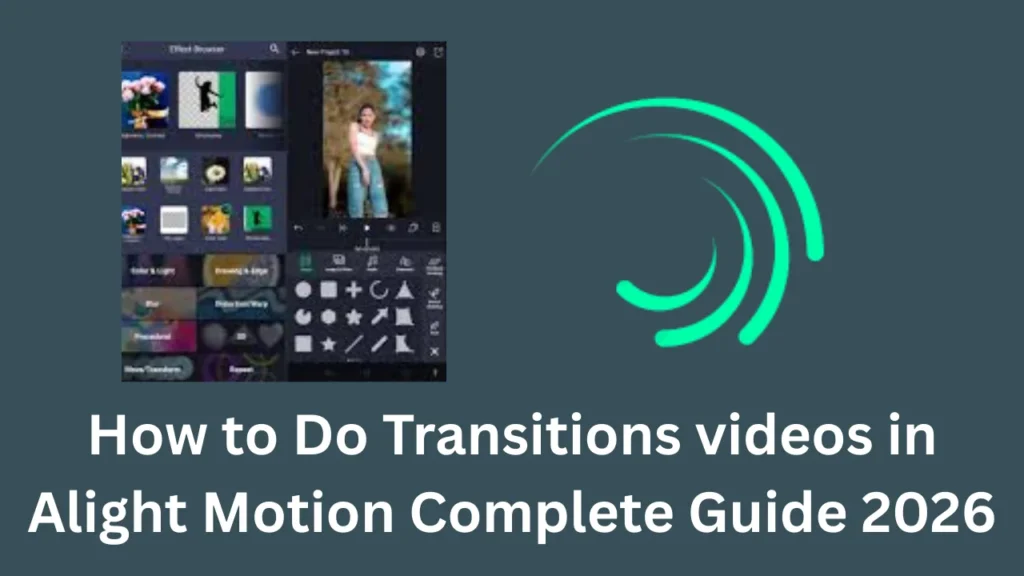

How to Do Transitions videos in Alight Motion Complete Guide 2026

How to Do Transitions videos in Alight Motion Complete Guide 2026

How to Do Transitions videos in Alight Motion Complete Guide 2026

Professional video editing isn’t just about the clips you film. It’s actually about  the way you connect them. In 2026, everyone wants smooth storytelling, and learning Alight Motion transitions is the quickest way to make a basic edit look viral. Whether you’re making an AMV or a simple social media ad, this guide will show you how to get that flow right.

What Is a Transition in Video Editing?

A transition is just a visual bridge between two different clips. Instead of a “hard cut”
where one video just snaps into the next, a transition blends them together. It keeps
the video moves naturally so your viewers don’t lose interest.

What Is Alight Motion Transition?

In Alight Motion, transitions aren’t just simple buttons you click. While you can find
presets, a real “Alight Motion Transition” is usually made by hand using key frame
animation. You move, scale, and rotate layers using interpolation graphs to get that
fluid motion you see in top-tier edits.

Why Use Transitions in Your Videos?

  • Pro Look: Good transitions hide the fact that you’re editing on a phone.
  • Keep Viewers Hooked: Smooth movement stops people from scrolling away.
  • Vibes: A slow fade feels different than a fast, aggressive shake.
How to Do Transitions videos in Alight Motion Complete Guide 2026

Popular Transition Effects to Try

Whip Pan Transition

  • Add motion blur to the end of clip 1.
  • Add motion blur to the start of clip 2.
  • Create rapid position movement.
  • Works best at 30–60 FPS.

Glitch Transition

  • Duplicate your clip layer.
  • Add RGB split effect.
  • Animate displacement over 5–10 frames.
  • Add random position offsets.

Spin Transition

  • Use rotation keyframes (0° → 360°).
  • Combine rotation with scale animation.
  • Add motion blur for realism.

Displacement Transition

  • Use displacement maps.
  • Animate the displacement amount.
  • Creates liquid or distortion-style effects.

Step-by-Step Guide to Creating Transitions

Method 1: Using Built-in Transition Presets

  1. Open Alight Motion and create a new project with your desired resolution and frame rate
  2. Import your video clips to the timeline
  3. Position two clips next to each other where you want the transition
  4. Tap on the junction point between clips
  5. Select “Add Transition” from the menu
  6. Browse the preset library and choose your desired effect
  7. Adjust the duration (typically 0.5-1 second works well)
  8. Preview and fine-tune

Method 2: Creating Custom Keyframe Transitions

This is where Alight Motion really shines, allowing you to create unique transitions:

  1. Opacity Fade Transition:
    • Select the second clip
    • Go to the opacity parameter
    • Add a keyframe at the start (set to 0%)
    • Move forward 15-20 frames and add another keyframe (set to 100%)
    • The clip will fade in smoothly
  2. Zoom Transition:
    • Select your clip and add keyframes to the scale property
    • Start frame: Scale at 150-200%
    • End frame: Scale at 100%
    • Add easing curves for smoother motion
  3. Slide Transition:
    • Use position keyframes
    • Start the clip off-screen (left, right, top, or bottom)
    • Animate it sliding into frame over 15-30 frames

Method 3: Advanced Shape and Mask Transitions

  1. Create a shape layer (circle, square, or custom shape)
  2. Animate the shape’s scale or position to reveal the next clip
  3. Use the shape as a mask by adjusting blend modes
  4. Common effects: circular wipes, rectangle reveals, diagonal swipes

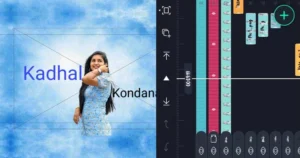
How to Do Transitions on Alight Motion App (Manual Process)

How to Customize the Transition Effect in Alight Motion?

Don’t just stick to one effect. Stack them. Use a slide but add a little “Brightness”
flicker or some “Lens Blur” at the moment they switch. It makes it pop.

How to Apply Transition Effects on Audio Tracks?

People forget audio. Use volume keyframes to dip the sound or add a “Whoosh”
sound effect right at the transition point. It makes the whole thing feel more real.

Pro Tips for Better Transitions

  1. Timing is Everything: Most transitions work best between 0.3-1 second duration. Shorter for fast-paced content, longer for cinematic feel
  2. Match the Beat: Sync transitions with music beats for more impactful edits
  3. Use Easing Curves: Access the graph editor to add ease-in and ease-out to your keyframes for smoother, more natural motion
  4. Layer Multiple Effects: Combine opacity, scale, and position animations for complex transitions
  5. Motion Blur: Enable motion blur in project settings for more realistic fast movements
  6. Color Matching: Use color correction to match the look of consecutive clips before transitioning
  7. Sound Effects: Add whoosh or swish sounds to emphasize transitions

Common Transition Workflows

For Social Media Content (Instagram & TikTok)

  • Keep transitions short (0.3–0.5 seconds).
  • Use trendy effects like glitch, RGB split, and zoom.
  • Match transitions precisely to music beats.

For YouTube Videos

  • Use subtle transitions for long-form content.
  • Simple fades and straight cuts work best.
  • Save dramatic transitions for key moments.

For Cinematic Projects

  • Use slower, elegant transitions (1–2 seconds).
  • Ensure transitions are motivated by the story.
  • Apply dissolves, wipes, and camera-based movements.

Troubleshooting Common Issues

  • Choppy transitions: Increase your project frame rate to 60fps
  • Transition too abrupt: Add easing curves to keyframes
  • Quality loss: Export at highest settings and match your source footage resolution
  • Lag during preview: Lower preview quality in settings, render for final quality check

Exporting Your Video

  1. Tap the export button (top right)
  2. Choose resolution (1080p or 4K recommended)
  3. Select frame rate (match your project settings)
  4. Set bitrate to high for best quality
  5. Export and save to your device

Conclusion

Alight Motion’s power lies in its keyframe animation system, so experiment with combining different properties (position, scale, rotation, opacity, blur) to create unique transitions that match your creative vision. The more you practice, the more intuitive the process becomes!

FAQs

Is it possible to create custom transitions in Alight Motion?

Yes, You just use keyframes in the Move & Transform section to build your own.

Can we use Alight Motion free of cost?

Yes, you can download it for free, but it puts a watermark on your work. Most people use the pro version or a mod to get rid of it.

How do you create smooth transitions in Alight Motion?

It’s all in the graph editor. Stay away from “linear” lines and use “easing” curves instead.

What are the most commonly used transition effects in Alight Motion?

Mostly Zooms, Slides, Spins, and Shakes