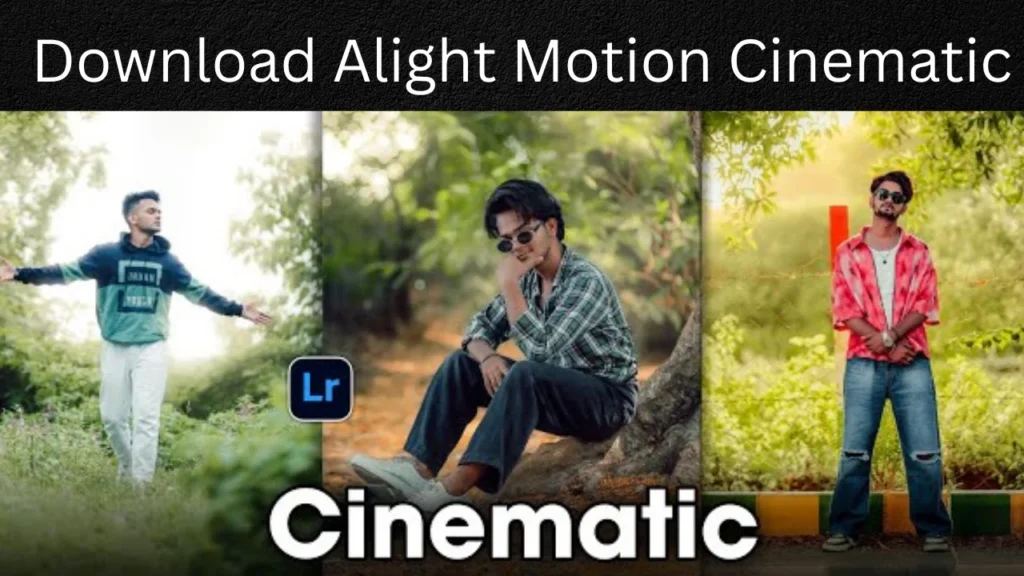
Download Alight Motion Cinematic Presets?
Cinematic presets are pre-edited project files containing layers, effects, transitions, and animations already configured by creators Themotionalight. They save you hours of manual editing and help achieve professional-looking results quickly.
Types of Cinematic Presets Available:
- Cinematic Color Correction (CC)
- Pre-made color grading effects that give videos a cinematic vibe Sarthakstudio
- Perfect for Instagram Reels, TikTok videos, and aesthetic content
- Includes warm tones, cool tones, and film-like color treatments
- Cinematic Effects
- Black bars for film-like aspect ratio, color contrast techniques to make colors pop, and depth of field effects that blur backgrounds Camera movement simulations (zooming, tilting, panning)
- Light leaks and lens flares
- Cinematic Transitions
- Whip pan transitions for fast-paced content
- Smooth fades and crossovers
- Glitch effects for modern, edgy videos
How to Download & Use:
Look for trusted sources from YouTube creators or websites like sarthakstudio.com.
Or manually share the XML file from your file manager to Alight Motion.
Copy the layer containing cinematic effects and paste it on top of your video or image.
Customize colors, intensity, and timing to match your content.
Examples of Popular Cinematic Effects
You can achieve many cinematic styles with Alight Motion presets:
Teal and Orange: This classic Hollywood style adds warm orange tones to skin and turns blues and greens in the background to teal. The contrast makes subjects stand out.
Moody and Dark: This style features deep shadows, muted colors, and high contrast. It creates drama and intensity, perfect for serious or atmospheric videos.
Vintage Film: These presets mimic old film stock with effects like grain and light leaks. They give your video a nostalgic, timeless feel.
Clean and Vibrant: Not all cinematic styles are dark. This one brightens natural colors and sharpens footage, creating a modern, energetic look.
Where to Find Free Presets:
How to Import the Preset into Alight Motion
To import a Alight Motion Cinematic effect preset, follow these steps based on the file format you downloaded:
1. For XML Files:
Download the XML file to your device (usually in “Downloads”).
Open Alight Motion and start a new project or open an existing one.
Tap the green “+” button to add your video or image.
Select the media layer in your timeline.
Go to Effects > Add Effect.
Tap the three dots (…) in the top-right corner and choose Import Effects (XML).
Find the XML file in your “Downloads” folder and select it. The Alight Motion Cinematic effect will be added to your project.
2. For QR Codes:
Show the QR code on another device or use a split screen.
Open Alight Motion.
Tap the QR code icon at the bottom of the main screen.
Use your camera to scan the QR code.
Alight Motion will automatically import the project or element from the QR code.
3. For Alight Motion Links:
Tap the Alight Motion preset link.
Your device will ask if you want to open it with the Alight Motion app.
The app will open and prompt you to import the project package. Tap Import.
The project will now show up in your projects list.
Why are Cinematic presets so popular
Conclusion
Alight Motion cinematic presets are powerful tools that can transform your video editing workflow in 2026. These ready-made XML files provide professional-grade effects, color grading, and transitions that would otherwise take hours to create from scratch. Whether you’re creating content for TikTok, Instagram Reels, YouTube, or personal projects, cinematic presets help you achieve that polished, film-like quality with minimal effort.
The best part is that countless free presets are available through YouTube creators, community websites, and the Alight Motion community itself. By learning to download and customize these presets, you can elevate your content quality significantly while developing your own editing skills along the way.
FAQs
Q1: Are Alight Motion cinematic presets really free?
Yes, many creators share their cinematic presets for free on YouTube, Google Drive, and community websites. However, some premium preset packs may require payment. The official Alight Motion app also offers free templates, though advanced features require a subscription.
Q2: What file format are Alight Motion presets?
Alight Motion presets are XML files. When you download a preset, you’ll receive an .xml file that can be imported directly into the Alight Motion app.
Q3: Do I need Alight Motion Pro to use cinematic presets?
No, you can use free presets with the free version of Alight Motion. However, some advanced effects within certain presets might require Pro features. The free version will still work with most basic cinematic presets.
Q4: Can I use Alight Motion presets on iPhone/iOS?
Unfortunately, Alight Motion is currently only available for Android devices. iOS users would need to look for alternative apps like LumaFusion, CapCut, or VideoLeap for similar cinematic effects.
Q5: How do I import downloaded presets into Alight Motion?
There are two methods: (1) Click the download link and select “Open with Alight Motion” when prompted, or (2) Go to your file manager, locate the downloaded XML file, tap it, and select “Share” > “Alight Motion.”
Q6: Can I edit or customize downloaded presets?
Absolutely! That’s one of the best features of presets. Once imported, you can adjust colors, intensity, speed, duration, and any other parameters to match your specific video and creative style.