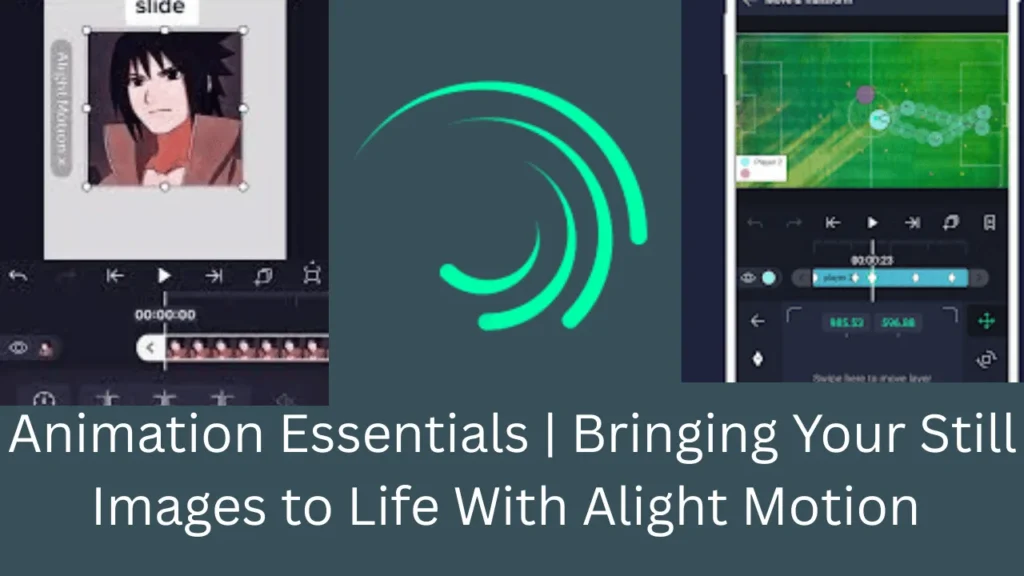
Animation Essentials | Bringing Your Still Images to Life With Alight Motion
Alight Motion is the best choice for you who want to create stunning motion graphics and animations. The app is considered the first professional motion graphic editor and video editor for your Android. This is also considered the best animation editor to have with you. Moreover, if you want to add life to your favorite image, this is the best thing you can try. Here through this, you can get a quick idea of adding life to still images with Alight Motion Animations more simply and easily.
What is Alight Motion?
Alight Motion is a powerful mobile animation and video editing app available for Android and iOS. It’s particularly popular for creating motion graphics, animations, and visual effects with a professional-level toolset on mobile devices.
Core Animation Techniques for Still Images
1. Keyframe Animation
Keyframes are the foundation of animation in Alight Motion. They mark specific points in time where you set properties like position, scale, rotation, and opacity.
How to use:
Select your image layer
Move the playhead to where you want the animation to start
Tap the property you want to animate (position, scale, rotation, opacity)
Add a keyframe by tapping the diamond icon
Move the playhead forward and change the property value
Alight Motion automatically creates smooth transitions between keyframes
2. Essential Animation Properties
Position: Move images across the screen
Create sliding, panning, or floating effects
Combine with easing for natural motion
Scale: Resize images dynamically
Zoom in/out effects
Pulsing animations
Ken Burns effect (slow zoom + pan)
Rotation: Spin or tilt images
360° spins
Subtle wobbles
Perspective shifts
Opacity: Control transparency
Fade in/out transitions
Ghosting effects
Reveal animations
3. Easing Functions
Easing makes animations feel natural rather than robotic.
Common easing types:
Linear: Constant speed (mechanical feel)
Ease In: Starts slow, accelerates
Ease Out: Starts fast, decelerates
Ease In-Out: Smooth acceleration and deceleration
Bounce: Creates bouncing effects
Elastic: Spring-like motion
Advanced Techniques
4. Parallax Effects
Create depth by moving multiple layers at different speeds.
Steps:
Separate your image into layers (foreground, midground, background)
Animate each layer moving in the same direction
Make closer layers move faster than distant ones
5. Motion Blur
Add realism to fast-moving animations.
Enable motion blur in layer settings
Adjust blur samples and shutter angle
Works best with quick movements
6. Color Adjustments & Effects
Bring images to life with dynamic color changes.
Available effects:
HSL (Hue, Saturation, Lightness) adjustments
Color curves
Glow effects
Gradient overlays
Chromatic aberration
7. Masking & Reveal Animations
Show parts of your image progressively.
Techniques:
Shape masks (circle, rectangle, custom)
Animated mask paths
Wipe transitions
Spotlight effects
Popular Animation Styles
• Set initial position & scale (zoomed in)
• Add keyframes at the start
• Move playhead to the end
• Adjust position & scale (pan/zoom)
• Apply ease-in-out for smooth motion
• Duplicate the image layer
• Mask the area to animate
• Apply subtle motion (flow, sway)
• Keep the base layer static
• Titles that zoom in
• Text tracking motion paths
• Kinetic typography synced to music
• Adjust anchor points
• Combine rotation & movement
• Add shadows for depth
• Layer multiple elements
Workflow Tips
• Set frame rate (30fps / 60fps)
• Consider export platform requirements
• Use folders for complex projects
• Lock unused layers
• Color-code related elements
• Use waveforms for timing
• Match beats with keyframes
• Reduce quality during editing
• Clear cache regularly
• Use low-res proxies
Common Animation Recipes
Photo Slideshow:
3-second duration per image
Crossfade transitions (0.5-1 second)
Subtle zoom on each image
Add text overlays for context
Dynamic Logo Reveal:
Start with logo elements separated
Animate each piece into position
Add glow or shine effects
Include sound effects for impact
Instagram Story Animation:
9:16 aspect ratio
Quick, punchy animations (0.5-1 second)
Bold text animations
Use stickers and emoji overlays
Cinematic Photo Montage:
Slow, deliberate movements
Film grain overlays
Color grading for mood
Atmospheric music
Export Settings
For best results:
Resolution: 1080p minimum (1920×1080)
Frame Rate: Match your project settings
Bitrate: High quality (8-12 Mbps for 1080p)
Format: MP4 (H.264) for compatibility
Learning Resources
To master Alight Motion:
Explore the app’s built-in tutorials
Watch YouTube tutorials from creators like Alight Motion Official, MG Editing Zone, Prequel
Join Alight Motion communities on Reddit and Discord
Practice with free stock photos from Unsplash or Pexels
Conclusion
Start simple with basic position and opacity animations, then gradually add complexity. The best animations often come from combining multiple subtle effects rather than one dramatic movement.Alight Motion Is one of the best video editing apps you can try if you want to create professional and attractive still image animations. The features like keyframe animation, tweening, transitions, etc included in the app let you create stunning and amazing animations more easily and simply. If you want to showcase your creativity to the world then Alight Motion is the ultimate friend to have on your Android.