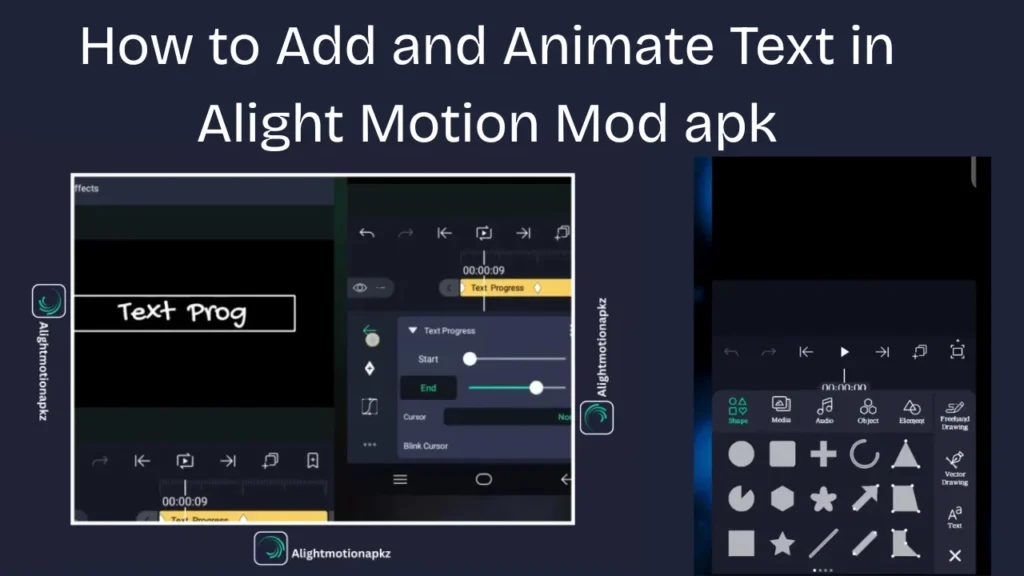
How to Add and Animate Text in Alight Motion Mod apk
Alight Motion Mod APK is a powerful video editing platform. This app helps you to edit headlines, subtitles, and other elements in your videos to give them a stunning look. You can use amazing colors and different templates to make your content stand out among followers. In this post, we will cover how to add Text in the Alight Motion App.

Why Add Text in Alight Motion
Adding text to your videos makes the intent more understandable and clearer. You can create unique headings, short titles, and precise captions for your videos. It attracts the viewers toward your content. Don’t delay further and try this feature in the Alight Motion app.
How to Add Text in Alight Motion?
Adding Text in your Alight Motion projects is straightforward. After adding the text, you can customize it in a way that attracts others’ attention. Let’s discuss in detail how to add text in Alight Motion.adding text in this videos are alight motion affects mod apk.
Text effects in Alight Motion
There is a variety of text effect features introduced by Alight Motion to its users including;
Text Animation Presets
Text Appearance Customization
Text Transformations
Text Effects
Blend & Opacity
Text Following Paths
Masking & Clipping
Advanced Keyframing
Time & Speed Controls
How to Add Text in Alight Motion
Step 1: Open the App and Click on New Project
- First, download Alight Motion APK from a trusted website. This quick app makes editing easy.
- Once the app is downloaded, open it and click on the + sign to create a new project. You can find this sign at the top right corner of your device’s screen.
- Select your preferred resolution and aspect ratio according to your project’s needs.
- After this, click on the “create project” or select the existing one to continue editing.
Step 2: Import Media to App
- Once you create a new project or select an existing one, press the + sign at the bottom right side.
- Many options will appear there. Press the “Media” button to import the media into Alight Motion.
- After that, multiple editing tools will display on the screen. You can use any of the tools and filters to make your video appealing.
Step 3: Add Text Layer and Text
- Press the back option on your phone and click the sign available at the lower right side.
- Search for the “Text” option.
- Now, click the “Add Text” to add your preferred text to your media.
- A text layer will be formed where you can write the text.
- Type your preferred text in the text layer. This text will be added to your media.
Step 4: Customize the Text
- Once you add text, a list appears at the top of the screen. This list has options that allow you to customize your text.
- In the top menu’s left corner, there is an option for text alignment. You can avail this option to adjust your text to the right, left, or center.
- Next, you can choose a font style. To do so, click the font style option, and then a dropdown menu appears with “View All Fonts”
- Press “View All Fonts” and select your preferred font.
- You can also customize the font size and color according to your preference.
- Once you’re all done, click the tick option to save all edits.
- You can also apply filters and effects, add shadows, and borders to make the text more eye-catching.
Step 5: Check Preview and Share the Project
- Once you’re done with all the editing, review your work. If you want to edit it further, you can do so until you are satisfied.
- After that, save your project and export it in your favorite format.
- Now you can share your edits with your family, friends, and followers, and also post on social media platforms.
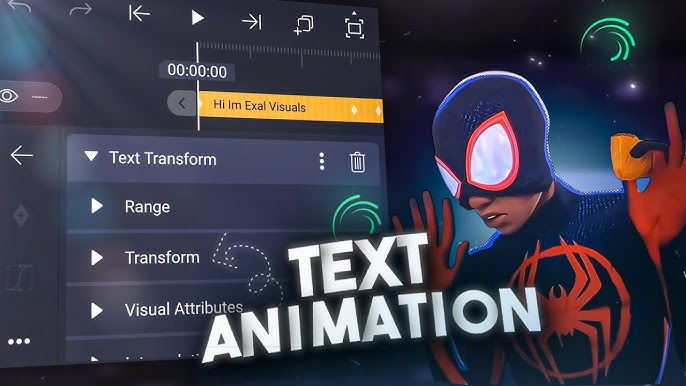
How to Animate Text in Alight Motion?
Do you like to apply animation effects to your text to make it more appealing? If yes, follow the steps below to add animated text in the Alight Motion app.
Step 1: Personalize Text Look
- First, open the text layer’s properties and click on the Color & Fill.
- Choose the “No Fill” option from the menu to delete the background color of the text.
- Now click the back arrow and then press Border & Shadow.
- Turn on the Stroke (outline) and select your favorite color. All such settings will be helpful for animations.
Step 2: Extend the Text Layer Duration
- Check text layer duration.
- If the duration of the text layer is 2 seconds, extend it to almost 9 seconds.
- This time is enough for you to add keyframe animations and effects before the text disappears.
Step 3: Duplicate the Text Layer
- Now, copy the text layer and hide it temporarily.
- Move to the original text layer and turn off the Stroke option.
- Turn on the fill (with the same color as the previously existing stroke).
- This makes your text clear, which is then used to apply masking.
Step 4: Apply a Mask
- Add a shape layer with the same color as the text’s stroke.
- You can change the shape’s size and position according to your needs.
- Trim text and shape layers to align them.
- Select the text and shape layer and click on the masking option.
- Now you can animate the text by moving the shape.
Common Text Animations Mistakes
Beginners overuse effects and apply too many keyframes. Another mistake they do is animating the text too fast which makes videos hard to read for the viewers. You should always keep the animation smooth and readable which is aligned with the video’s overall mood. Use simple motion with perfect time to give a more professional look to your video project.
Conclusion
Adding text features of Motion helps its users to produce professional grade & stunning videos using different text designs. This guide will help you achieve the professional video editing goals using Alight Motion Texts and Text Animation features. You can produce very rare and engaging content by using and adding text effects in your videos.
FAQs
How to change the text colour in alight motion?
You can easily change or update the font colour by using colour palette or colour picker in Alight Motion
Can we save text designs as templates?
Yes! We can easily use text designs as templates by clicking on “Save as Template” after making a new text layer design
Can Animated Text Slow down my Project?
yes! complex text animations with multiple layers and heavy text effects can slow down your project especially on low end devices.
Is Alight Motion better than the VN Video Editor?
Yes, Alight Motion is the best platform for editing as it offers you advanced features. This app is perfect for editing short and long projects compared to the VN Video Editor.